Responsive Ads Here
LightBlog
Showing posts with label Arduino. Show all posts

Saturday, August 11, 2018

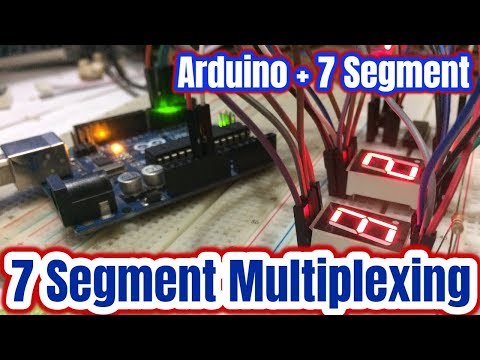
7 Segment display Multiplexing with 74hc595 Shift Register Using Arduino

Overview
In this Arduino tutorial, we will how to multiplexing seven segment display with a 74hc595 shift register. A single digit display shows 0 to 9 decimal number. Ofen we need to display two, three, four or more digit decimal number, but the problem is lack of I/O (input/output) pins in the MCUs. To solve this problem we need to multiplexing. Here we will also use a 74hc595 shift register.


You can watch the following video below:-


Components Required

The following component needed for this tutorial.
  • Arduino Uno
  • 2 Common anode 7 segment display
  • 74hc595 shift register
  • 220-ohm resistor
  • Breadboard
  • Some jumper wire

Pin Configuration

The following figure shows common anode 7 segment display pinout. It has total 10 pins in which pin 3,8 common pin, pin 5 is DP and remaining pins are a,b,c,d,e,f,g.
Fig: Common anode 7 segment display pinout
Shift register 74hc595 pinout given below diagram:-
Fig: 74hc595 pinout

Circuit Schematic

The following figure shows the 7 segment display multiplexing with 74hc595 shift register using Arduino.
Fig: 7 Segment display multiplexing

Circuit Description

The shift register has 16 pins in which 7 output pins will connect with 7 segment LEDs pin. The shift register Vcc pin 16 and MR pin 10 will connect to +5V.  The ground pin 8 and output enable pin 13 will goes to ground. Next, shift register clock, latch, and data pins are gradually 11,12 and 14 will connect to Arduino digital pin 2, 3 and 4 respectively. Seven segment display common pins will connect to Arduino digital pin 6 and 7 through the 220-ohm series resistor.   

7 segment display ----------------- 74hc595 shift register
Pin_7(Seg_a)    ---------------          Pin_15(Q_A)
Pin_6(Seg_b)    ---------------          Pin_1(Q_A)
Pin_4(Seg_c)     ---------------          Pin_2(Q_A)
Pin_2(Seg_d)     ---------------          Pin_3(Q_A)
Pin_1(Seg_e)     ---------------          Pin_4(Q_A)
Pin_10(Seg_f)     --------------         Pin_5(Q_A)
Pin_9(Seg_g)     --------------          Pin_6(Q_A)


Source Code

This is the source code of multiplexing given below:-

Friday, June 1, 2018

Common Anode and Cathode 7 Segment display interfacing with Arduino

Overview

In this Arduino tutorial, we will learn how to interface common anode and cathode 7 segment display with Arduino. 7 segment display is most common and popular display to show the number in the digital electronics and embedded system. It can be displayed in 0 to 9 decimal number.  They are easy to use and cheap. 7 Segment displays are two types of display called common cathode (common negative) and common anode (common positive).

You can watch the following video below:-


Components Required

The required components list for this tutorial given below:-

  • Arduino Uno
  • 7 Segment Display Common Anode
  • 7 Segment Display Common Cathode
  • 220-ohm resistor
  • Breadboard
  • Some jumper wire
7 Segment Pinout

Seven segment display has total 10 pins in which one is DP pin, two common pins and remaining seven pins are a,b,c,d,f,g. The following below figure shows 7 segment display internal structure and pinout. 
Fig: 7 segments display pinout


Circuit Schematic

The following figure shows Arduino and the common cathode 7 segment display interfacing.
Fig: 7 segments common cathode display interfacing

The following figure shows Arduino and the common anode 7 segment display interfacing.
Fig: 7 segments common anode display interfacing

Circuit Description

Both types of seven segment display internal connection are nearly the same. The difference is the polarity of the LEDs and common terminal. In a common cathode display, we need to connect common pins to ground and others pin to +5V. Alternatively, in a common anode display, we need to connect common pins +5V.


Arduino--------------------Seven Segment
Pin_1     ----------------   Pin_7 (Seg_a)
Pin_2     ----------------   Pin_6 (Seg_b)
Pin_3     ----------------   Pin_4 (Seg_c)
Pin_4     ----------------   Pin_2 (Seg_d)
Pin_5     ----------------   Pin_1 (Seg_e)
 Pin_6     -----------------  Pin_10 (Seg_f)
Pin_7     ----------------   Pin_9 (Seg_g)


Source Code

Common cathode display Arduino source code given below:-


Common anode display Arduino source code given below:-


Alternative common cathode display Arduino source code given below:-


Alternative common anode display Arduino source code given below:-

Thursday, May 31, 2018

One single analog pin keypad control using Arduino

Overview

In this tutorial, we will learn how to interfacing 4*4 keypad with Arduino by a single analog pin. The use of a lot of pins can be reduced by following this procedure. It helps to use rest of pins for another purpose. For this tutorial, we will use a single analog pin to interfacing keypad with Arduino. 

You can watch the following video below:-

Components Required

The required components list for this tutorial given below:-
  • Arduino Uno.
  • 4*4 keypad.
  • Three 4.7k resistors.
  • Four 1k resistors.
  • One 220ohm resistor.
  • LCD display.
  • 10k potentiometer.
  • Some jumper wire.
    Fig:1.1

Keypad Pinout

The following below figure shows 4*4 keypad pinout. 
Fig 2.1: 4*4 Keypad Pinout

Circuit Schematic

The given below schematic is single wire keypad with Arduino:- 

Fig 3.1: One wire keypad with Arduino

Circuit Description

One single analog pin keypad control based on basic voltage divider role. The voltage increase gradually from left to right (Fig: 4.1) in the row and up to down (Fig: 4.1) in the column. The voltage is minimum at the first-row first column and the maximum voltage is at point row 4 and column 4. Three 4.7k ohm resistors will gradually connect between row 1 to  2, 2 to 3, 3 to 4. Similarly, three 1k ohm resistors will connect between column 1 to 2, 2 to 3, and 3 to 4 respectively. The remaining one 1k ohm resistor will go to ground from column 1. Next +5V will connect with row 1 and analog input A0 pin from Arduino will connect with column 1. 

Fig: 4.1
The first pin of LCD from left is Gnd pin which will connect with Arduino ground pin. Next LCD pin R/W 5  and cathode pin16 will also go to ground. The second pin of LCD is Vcc which connect with Arduino +5V. The anode pin 16 of LCD operated on 5V, a 220-ohm resistor should be connected in series to this pin. Next comes to the VEE (Pin 3) which is LCD contrast adjustment pin that will be connected a 10k potentiometer to +5V and ground, with its wiper (output) pin. The LCD rs and enable pin 4 and 6 will connect with Arduino digital pin 2 and 3 respectively. Next LCD pin D3 to D7 gradually connect with Arduino digital pin 4 to 7.   


Fig 4.2: One wire keypad with LCD using Arduino

Source Code

One wire keypad with Arduino source code is given below:-

One wire keypad with LCD using Arduino source code is given below:-


You can download the library here: https://github.com/AndrewMascolo/OnewireKeypad
Adbox